Chapter 09
Workflow
Organize the journey from idea and shoot to delivery, publishing, or print.
Build a repeatable workflow with safe, tested backups.
Create a standard project structure and complete one shoot through the entire workflow.
Lesson 01
Developing an Idea and Shot List
A useful shot-list row includes subject or action, shot size, purpose, orientation, priority, setup, and special requirement. A mood board communicates visual atmosphere; the shot list protects coverage. Both support rather than replace a clear brief and schedule. Order work by light, subject state, preparation time, and dependencies. Photograph hot food before it changes, exteriors at the planned sun angle, groups while everyone is present, and must-have frames before experiments. Reserve buffer time.

Key takeaways
- Define audience, purpose, and approval owner before listing frames
- Separate Must, Should, and Could coverage
- Attach crop or output ratio so enough room remains for text and platform use
- Group photographs by setup to reduce lighting and location changes
- Assign people, props, access, and preparation responsibilities before the day
- Leave room for unplanned moments that better serve the brief
- For location scouting, visit at the intended shooting time to check sun direction, backgrounds, shade, noise, changing space, and camera placement. Record access, travel time, permissions, exits, and a rain alternative. A map photograph cannot replace observing the actual site.
- Agree on references, setup order, and brief directions with the subjects. Ask about gesture/posing boundaries, schedule breaks, and assign responsibilities before shooting time is consumed by coordination.
Practical example
A restaurant assignment needs exterior, interior, chef, signature dishes, ingredients, and diners. The hero dish may require horizontal web and vertical 4:5 versions with copy space. Shoot food before service, the chef during preparation, and diners once the room becomes active.

Common mistakes
- Listing object names without explaining what each photograph must communicate
- Forgetting setup, travel, reset, and approval time
- Omitting output ratios and creating no space for design
- Following the list so rigidly that real moments are missed
- Having no one responsible for confirming must-have coverage
Knowledge check
Lesson 02
Folder Structure and File Naming
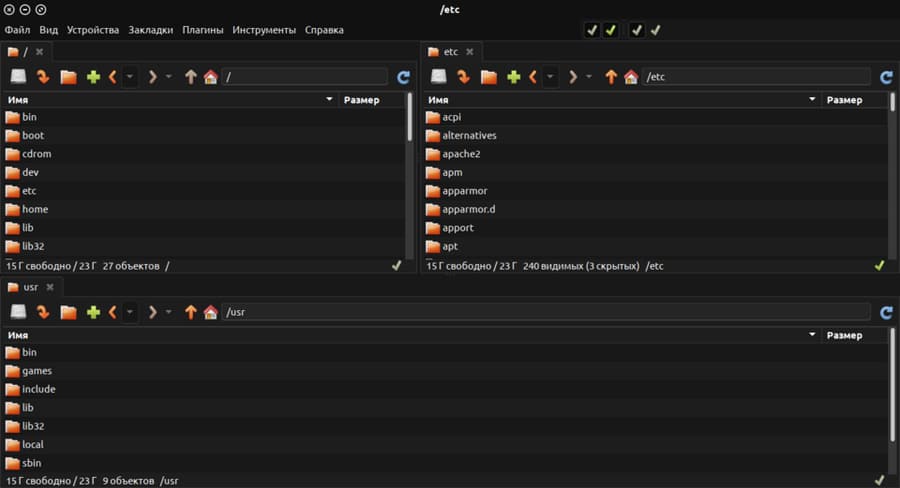
Good names sort predictably, remain readable, and do not depend on memory. Use `YYYY-MM-DD`, a short project code, padded sequence numbers, and explicit versions such as `v01`. Avoid unnecessary spaces, special characters, sensitive personal information, and names such as `final-final`. Separate source RAW files, catalog/sidecar data, layered masters, and deliverables. Use catalog collections for selection state instead of copying RAW files into several folders.

Key takeaways
- Reuse one understandable structure across projects
- Rename in a controlled batch before catalog links and external references depend on the name
- Move cataloged files through the catalog application
- Separate RAW, database, masters, exports, and project documents
- File names do not replace metadata for people, rights, subjects, and location
- Include a short README or manifest when another person will receive the project
Practical example
`2026-09-05_CafeLan/01_RAW` holds source files; web and print exports have different subfolders because their color, dimensions, and sharpening differ. A deliverable might be `CafeLan_MenuHero_4x5_v03.jpg`, while its master is `CafeLan_MenuHero_v03.psd`.
Common mistakes
- Moving or renaming RAW files outside the catalog
- Using ambiguous `final`, `final2`, and `final-new` versions
- Copying RAW files into Selects and Edits until no source is clear
- Embedding sensitive identity information into public filenames
- Building a folder hierarchy so deep that it is difficult to move or share
Knowledge check
Lesson 03
The 3-2-1 Backup Rule
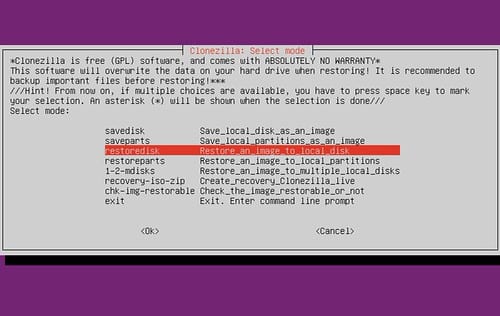
Keep three copies of important data, across two storage types or systems, with one copy off-site. A stronger 3-2-1-1-0 variation adds an offline or immutable copy and aims for zero errors after verification. Simple cloud synchronization is not automatically backup because deletion, corruption, or ransomware may synchronize too. Protect RAW files, catalogs, presets, profiles, contracts, and layered masters—not only final JPEGs. Encrypt sensitive off-site data and keep recovery credentials separately.
Key takeaways
- Do not format a card before at least two verified copies exist
- Automate backups on a schedule suited to acceptable data loss
- Use version history or immutability to protect against accidental deletion
- Monitor logs, capacity, and failure alerts; a scheduled job is not proof of success
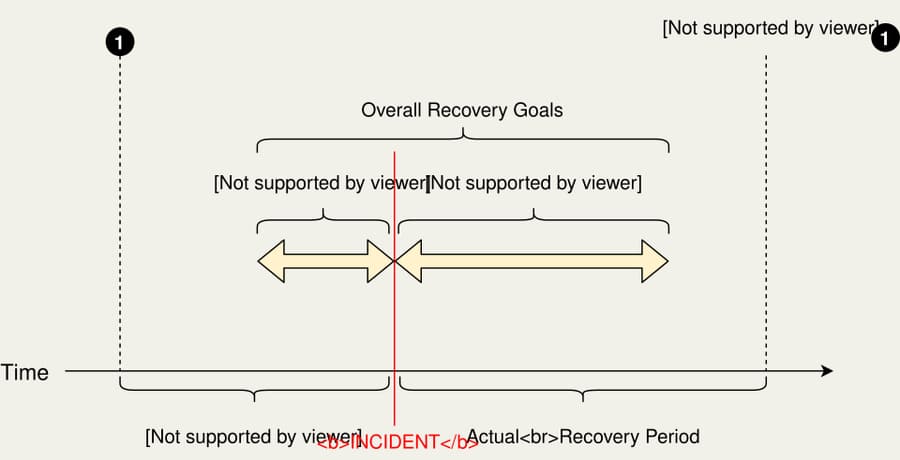
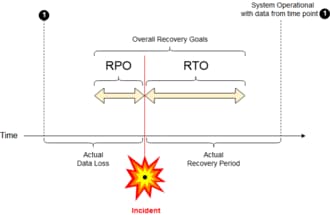
- Define recovery point and recovery time expectations
- Test restoration regularly because an untested backup is only an assumption
Practical example
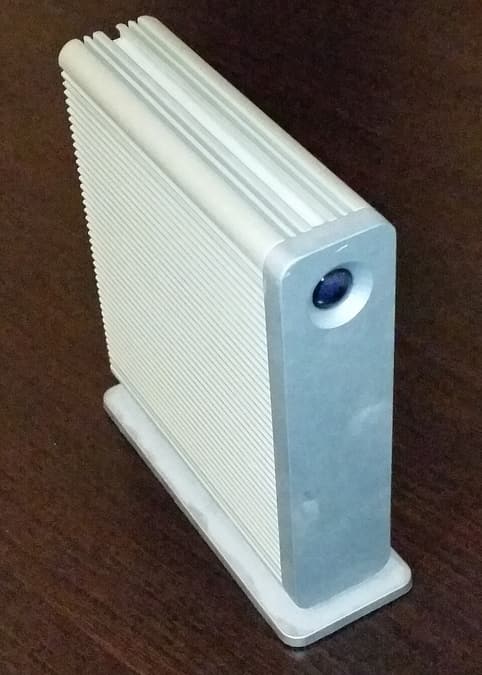
After a shoot, the card may remain copy one, the work SSD copy two, and encrypted off-site storage copy three. Each month, restore a random RAW file, layered master, and catalog into a temporary location and open them. Record how long recovery takes.
Common mistakes
- Keeping two drives connected to one machine with no off-site copy
- Treating RAID as backup rather than drive-failure availability
- Mirroring deletions without version history
- Storing the only encryption recovery key on the protected computer
- Backing up photographs but not the catalog, presets, or rights documents
Knowledge check
Lesson 04
Catalogs and Metadata
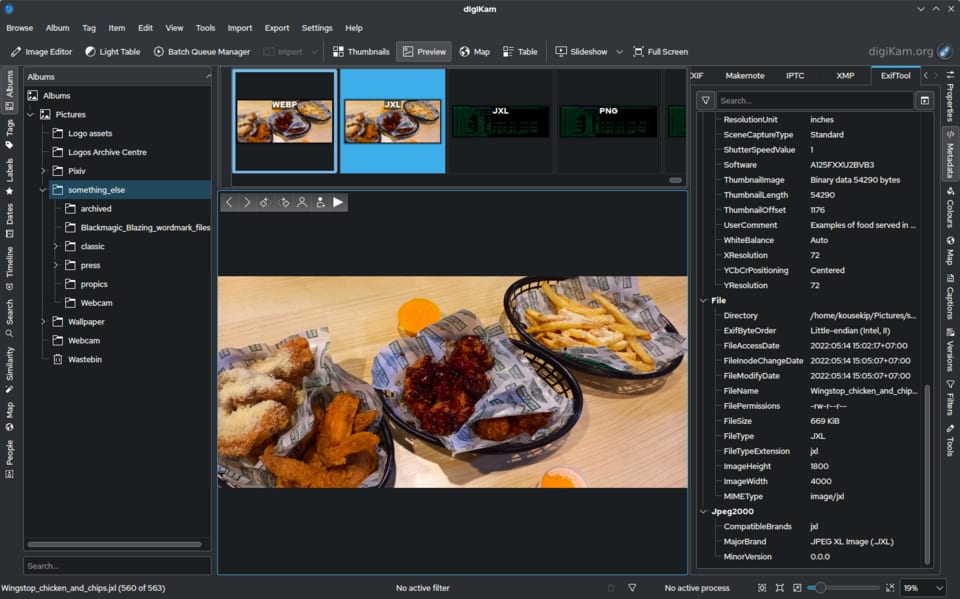
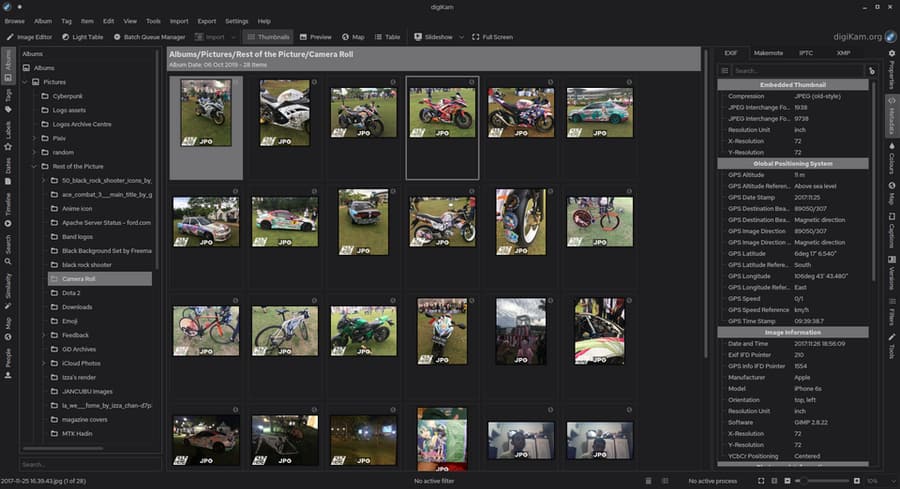
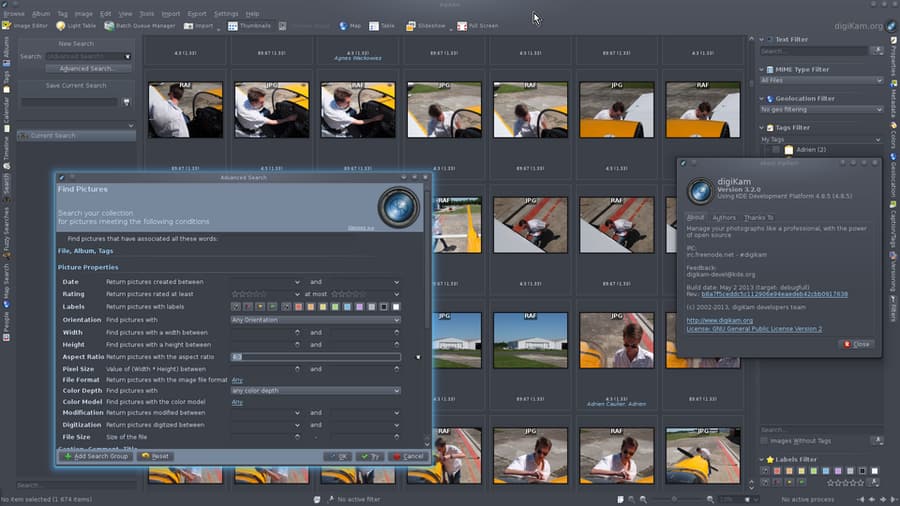
A catalog is a database that references files and stores previews, adjustments, collections, and metadata. XMP sidecars may carry some adjustment and metadata information, but not necessarily full history, collections, or application-specific state. Back up both the catalog and the originals. Build a modest taxonomy: hierarchical terms for place and subject, people tags only when appropriate, and a stable rating convention. Collections group images without duplicating files; smart collections update automatically from rules.
Key takeaways
- Move referenced files through the catalog application
- Give flags, stars, and color labels one consistent meaning
- Add useful copyright, contact, subject, and location metadata
- Use consistent spelling and hierarchy instead of many near-duplicate keywords
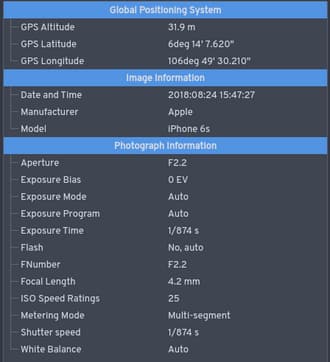
- Remove GPS, names, or other sensitive metadata from public exports when needed
- Preview and cache optimization improves speed but does not replace the original file
Practical example
Use flags for keep/reject, stars for quality, and color labels for workflow states such as “retouch,” “approved,” and “delivered.” A smart collection for `rating ≥ 3 + not delivered` becomes a working queue. Document the convention so it remains understandable later.
Common mistakes
- Changing the meaning of ratings between projects
- Believing the catalog contains the original files
- Creating uncontrolled keyword variations that become impossible to search
- Moving folders in Finder or Explorer and breaking references
- Publishing files with unintended GPS or personal metadata
Knowledge check
Lesson 05
Exporting for Social Media, Web, and Print
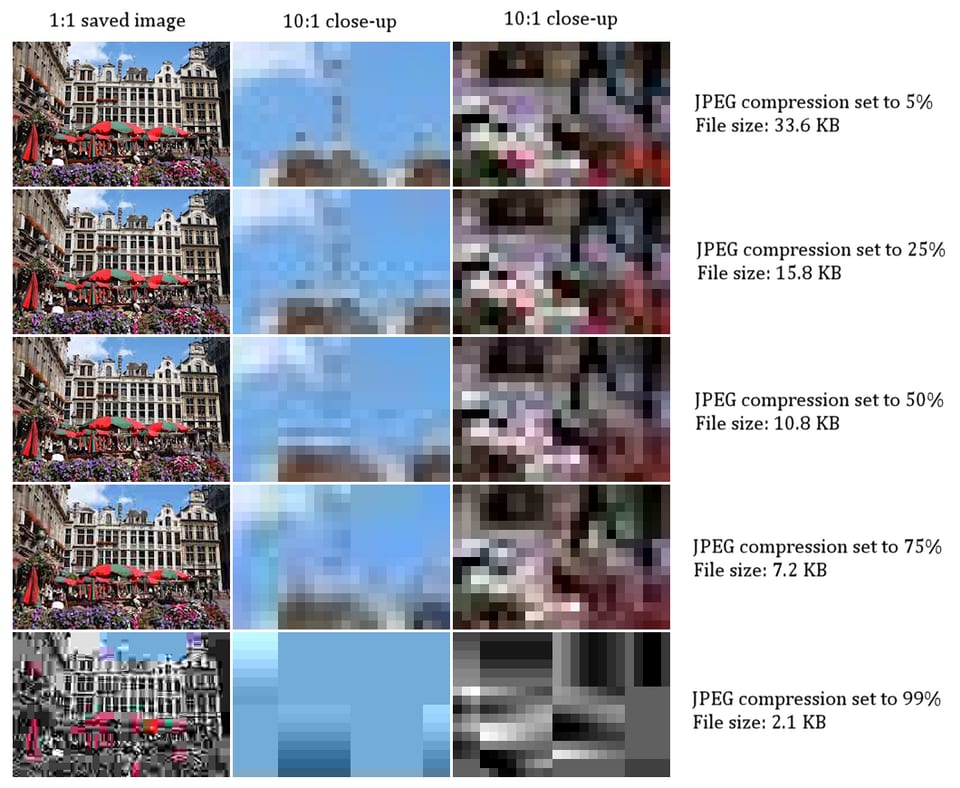
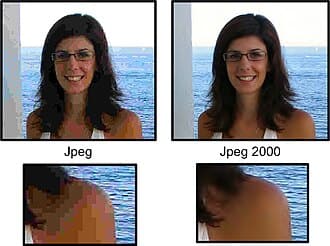
Before export, confirm pixel or physical dimensions, aspect ratio, color space, format, file-size limit, compression, metadata, sharpening, and naming. Resize before output sharpening, convert color with the correct profile, and inspect the exported file outside the editor. JPEG suits continuous-tone web photographs, PNG suits graphics and transparency, and TIFF/PSD preserve high quality or layers for masters and some print workflows. “Quality 100” is not standardized between applications.
Key takeaways
- JPEG in sRGB is the safest default for broad web display
- Build separate crops and sharpening for different outputs
- Do not enlarge without understanding the resolution and quality tradeoff
- Check platform cropping, safe areas, and recompression behavior
- Remove unnecessary GPS, serial, and private metadata from public files
- Save purpose-specific presets but still read current client or lab requirements
Practical example
A social file may be vertical 4:5 in sRGB with screen sharpening; a portfolio hero may be wider with a strict file-size limit; a 30 × 20 cm print needs sufficient pixels, a suitable profile, and print sharpening. All originate from one master but should not share crop and output settings blindly.

Common mistakes
- Uploading Adobe RGB to a platform that assumes sRGB
- Changing PPI without resampling and believing pixels were added
- Overwriting the master with a compressed JPEG
- Failing to reopen exports and missing crop, banding, or profile errors
- Leaving full GPS and private EXIF in public uploads
Knowledge check
Lesson 06
Color Spaces, Resolution, and File Size
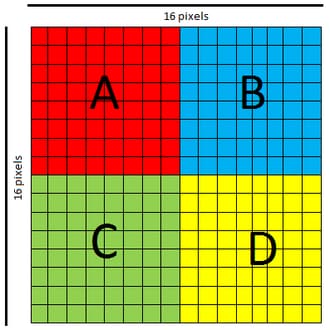
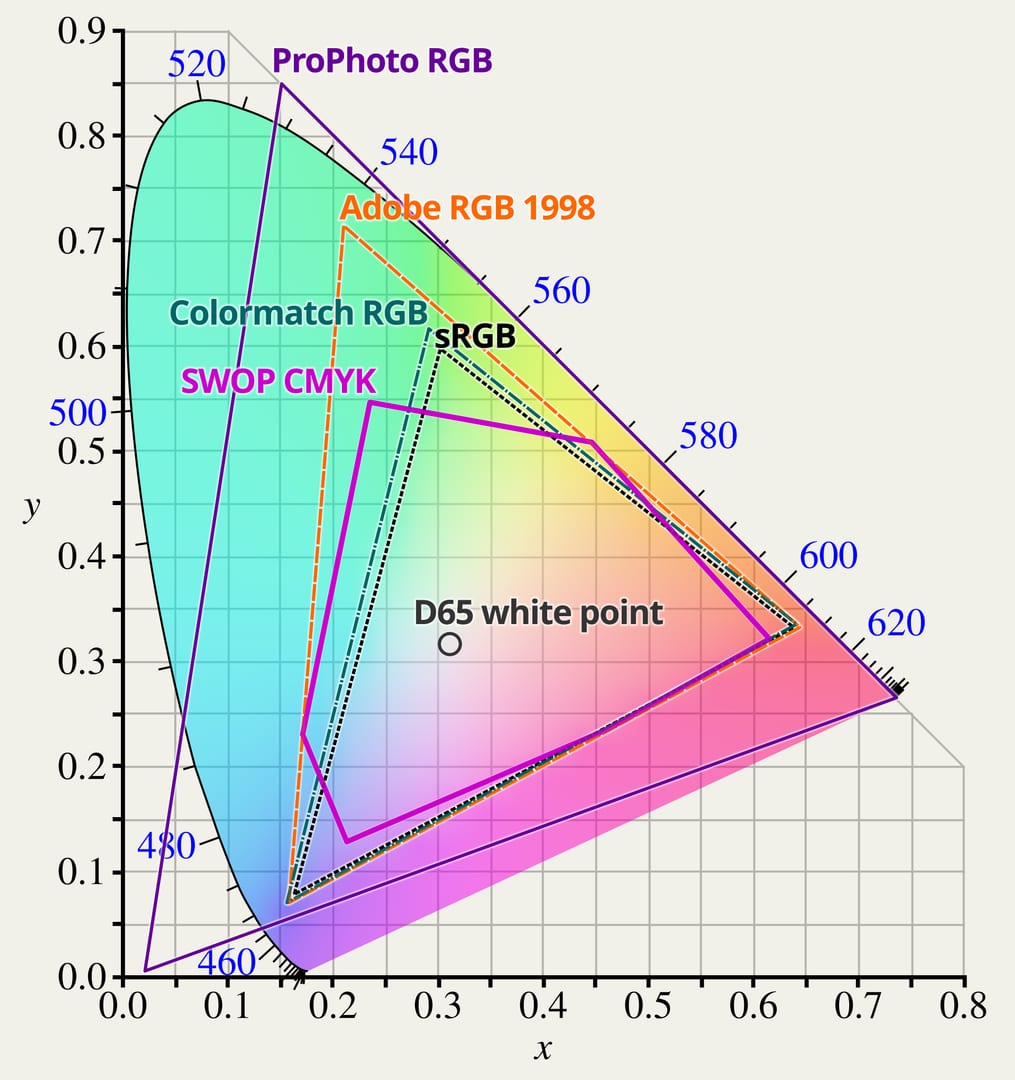
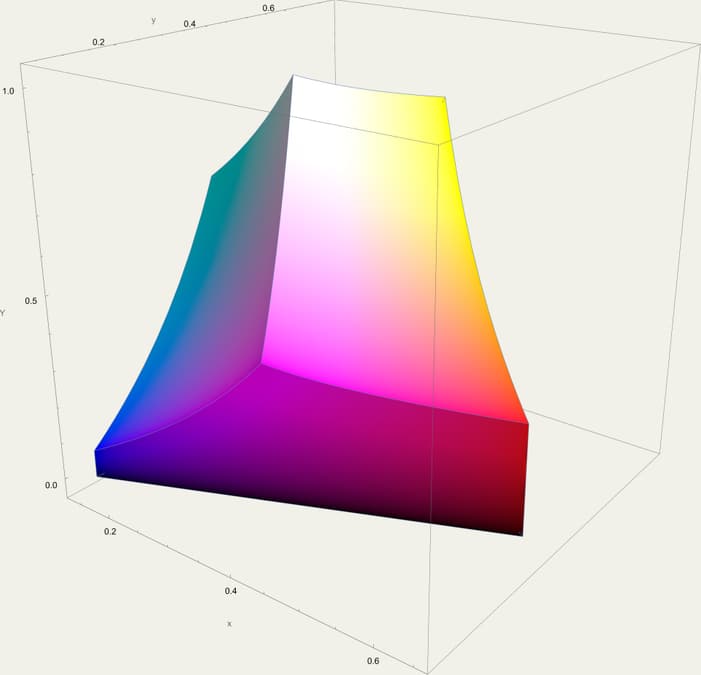
Color spaces such as sRGB, Adobe RGB, and Display P3 describe sets of colors. An ICC profile tells color-managed software how numeric values should appear on a device or paper. Assigning the wrong profile changes the meaning of those numbers; converting attempts to preserve appearance within the destination gamut. Print size equals pixel dimensions divided by PPI. PPI describes pixel density in print; printer DPI describes ink-dot capability and is not the same measure. Real quality also depends on viewing distance, paper, ink, and sharpening.
Key takeaways
- Pixel dimensions determine the available output detail
- PPI only has meaning alongside a physical print size
- Convert web output to sRGB and embed the profile
- Soft-proof when a lab provides a valid printer-paper ICC profile
- Rendering intent controls how out-of-gamut colors are mapped
- A calibrated screen helps, but a physical proof must be judged under appropriate light
Practical example
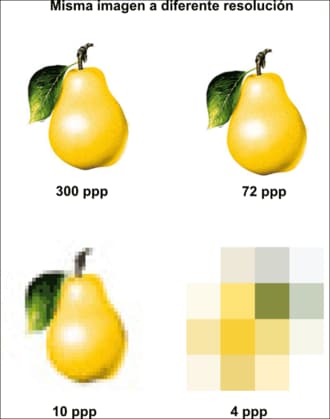
A 30 cm edge at 300 ppi requires approximately `30 / 2.54 × 300 ≈ 3543 px`. Changing metadata from 72 to 300 ppi without resampling creates no new pixels. A 6000 px edge prints at 20 inches at 300 ppi or 30 inches at 200 ppi.
Common mistakes
- Confusing PPI metadata with actual pixel dimensions
- Assigning sRGB to Adobe RGB values instead of converting them
- Ignoring an available printer-paper profile and proof conditions
- Editing on a screen that is much brighter than the print-viewing environment
- Assuming every wide-gamut display produces the same uncalibrated color