Chapter 08
Post-processing
Finish photographs naturally and consistently with your original intention.
Complete a coherent edit of a RAW series with consistent tone and color.
Select ten RAW files, correct tone and color, then unify them as a series.
Lesson 01
Selecting and Evaluating Photographs
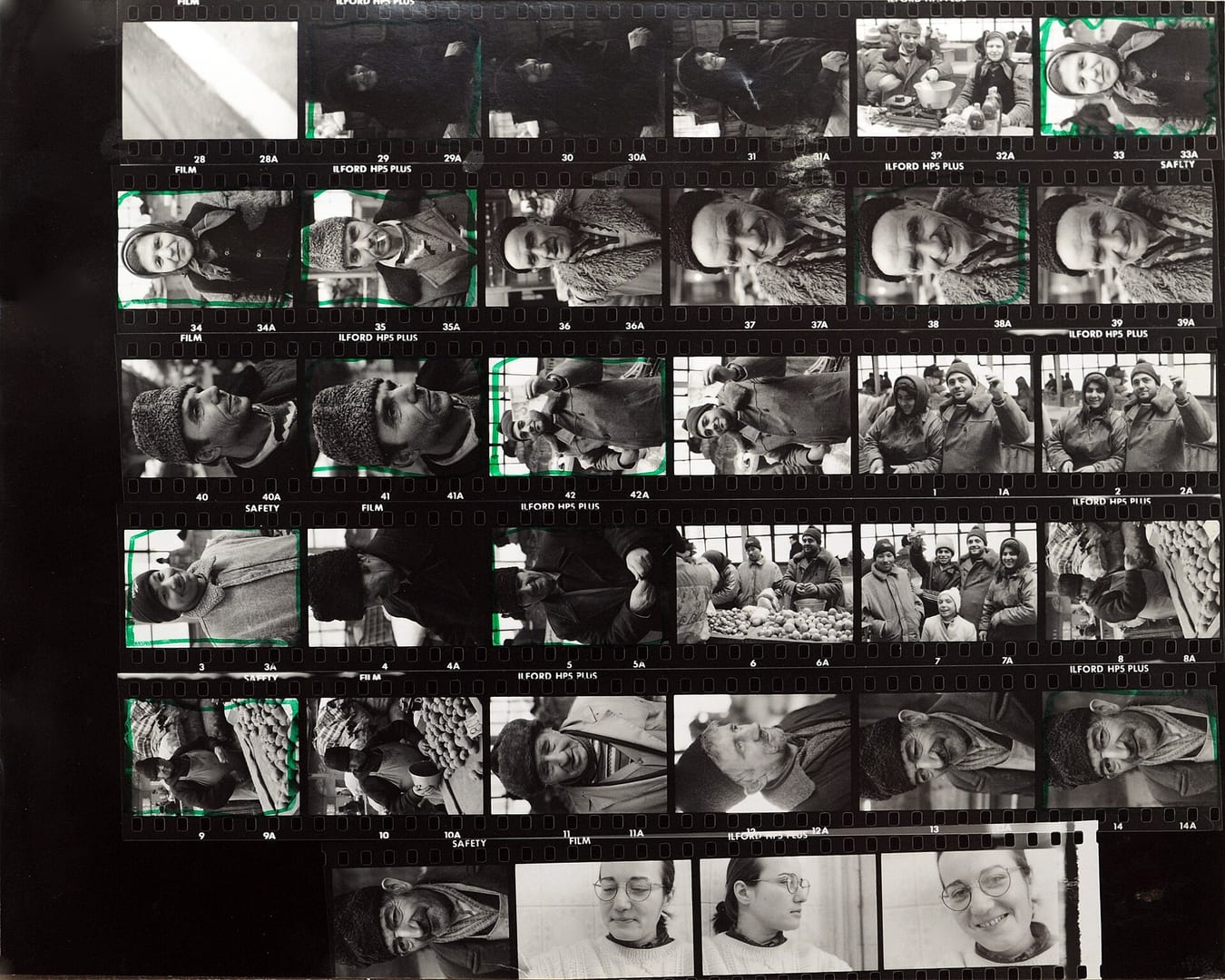
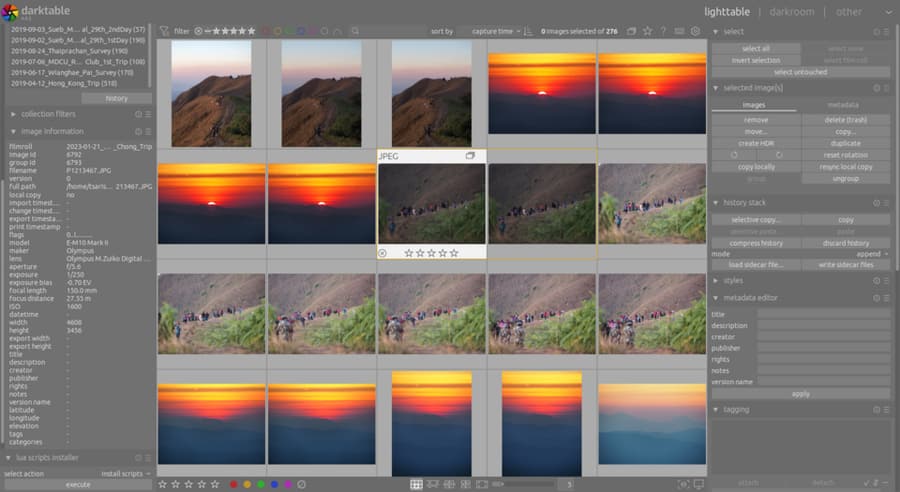
Selection finds the frames that serve the goal; it does not preserve every technically correct image. Separate culling from color work so a polished edit does not rescue weak content. First remove obvious failures, then compare near-duplicates, and finally review the whole selection for rhythm and coverage. A strong standalone image may leave if it repeats a function or breaks the series. A quiet transition frame may stay because it provides context. Judge role, moment, technique, and relationship to neighboring images.
Key takeaways
- Cull before detailed editing
- Compare similar frames side by side
- Use one consistent flag, rating, and color-label convention
- Check critical sharpness only among final competitors, not every frame in the first pass
- Select for story and output requirements, including horizontal or vertical use
- Keep alternates separate instead of filling the main edit with near-duplicates
Practical example
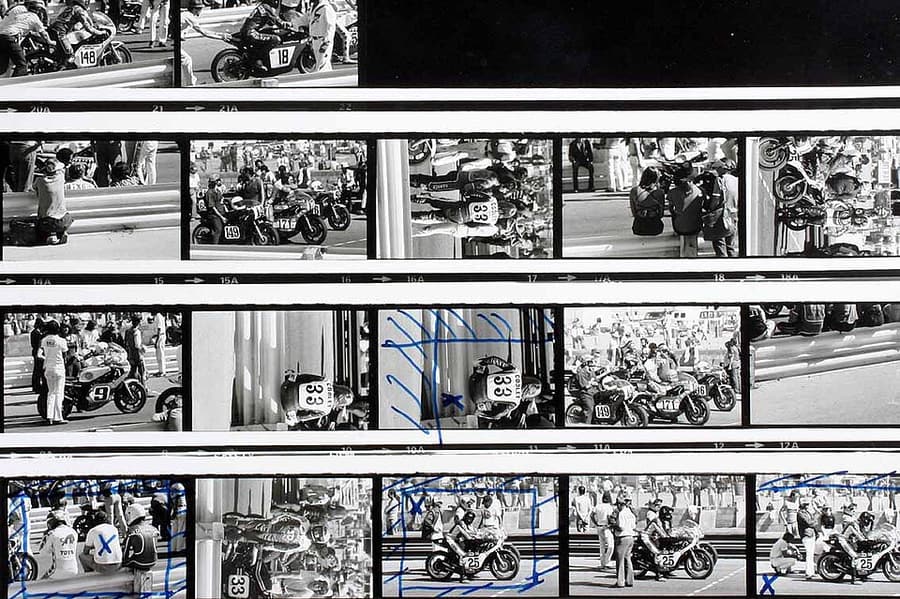
From twelve similar portraits, remove blinks first, then compare expression and gesture, and retain one frame with the clearest moment. If a horizontal hero and vertical social crop serve different deliverables, label their roles; five tiny variations of one smile do not.

Common mistakes
- Editing every image before deciding whether it belongs
- Keeping a photograph because it was difficult to make
- Rating from the memory of the shoot rather than the visible result
- Retaining too many variations to avoid making a decision
- Choosing strong individual frames without reviewing repetition across the set
Knowledge check
Lesson 02
Crop, Exposure, Contrast, and White Balance
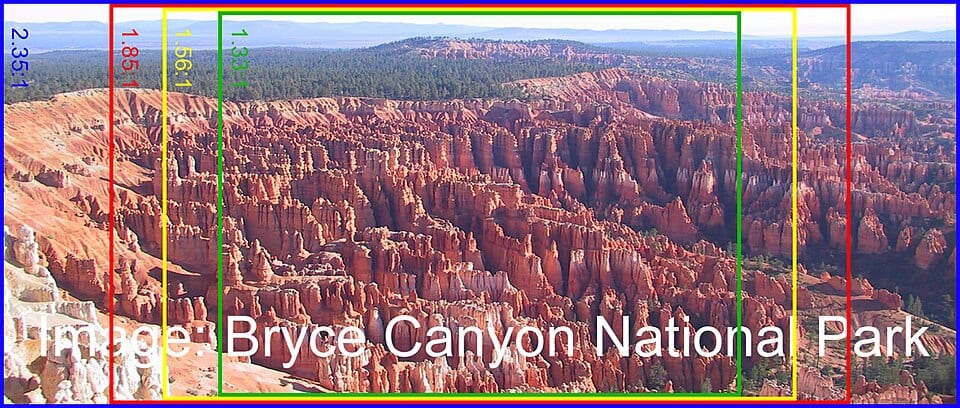
A practical correction order begins with profile and lens correction, then crop/straighten, white balance, exposure, and contrast. Cropping changes visual weight; white balance changes how color and brightness feel; exposure establishes overall tone; contrast distributes separation between light and dark. Choose an anchor such as skin, a neutral object, an important highlight, or a product color. Correct against that anchor and the histogram, then review at final size. Use a control only when it solves a visible problem.
Key takeaways
- Set profile, white balance, and overall exposure before building a strong look
- Crop to clarify composition while preserving required output resolution
- Straighten against a line that should truly be level, not a perspective edge
- Protect meaningful highlights and shadows instead of forcing every tone into range
- Compare before/after at similar perceived brightness
- Use virtual copies or non-destructive versions to explore alternatives
- Lens correction uses the matching profile to address optical distortion and vignetting; inspect chromatic fringes at high-contrast edges. It differs from perspective correction: converging verticals mainly arise from camera orientation and need a separate transform/keystone adjustment.
- For perspective correction, choose reliable reference lines, transform only as much as needed, and crop empty edges. Leave extra framing at capture because the transform discards edge pixels. Do not force every line parallel when an upward view is intentional.
Practical example
A portrait in open shade may need a warmer white balance, +0.4 EV, and reduced highlights. A crop that removes a bright edge object keeps attention on the face. After warming, check that skin has not become orange and that the remaining file is large enough for delivery.

Common mistakes
- Increasing contrast before fixing white balance and exposure
- Cropping so far that output resolution becomes insufficient
- Editing on an overly bright monitor and producing dark exports
- Accepting an automatic correction without checking skin and highlights
- Trying to make every wide-angle perspective line vertical
Knowledge check
Lesson 03
Highlights, Shadows, Tone Curves, and HSL
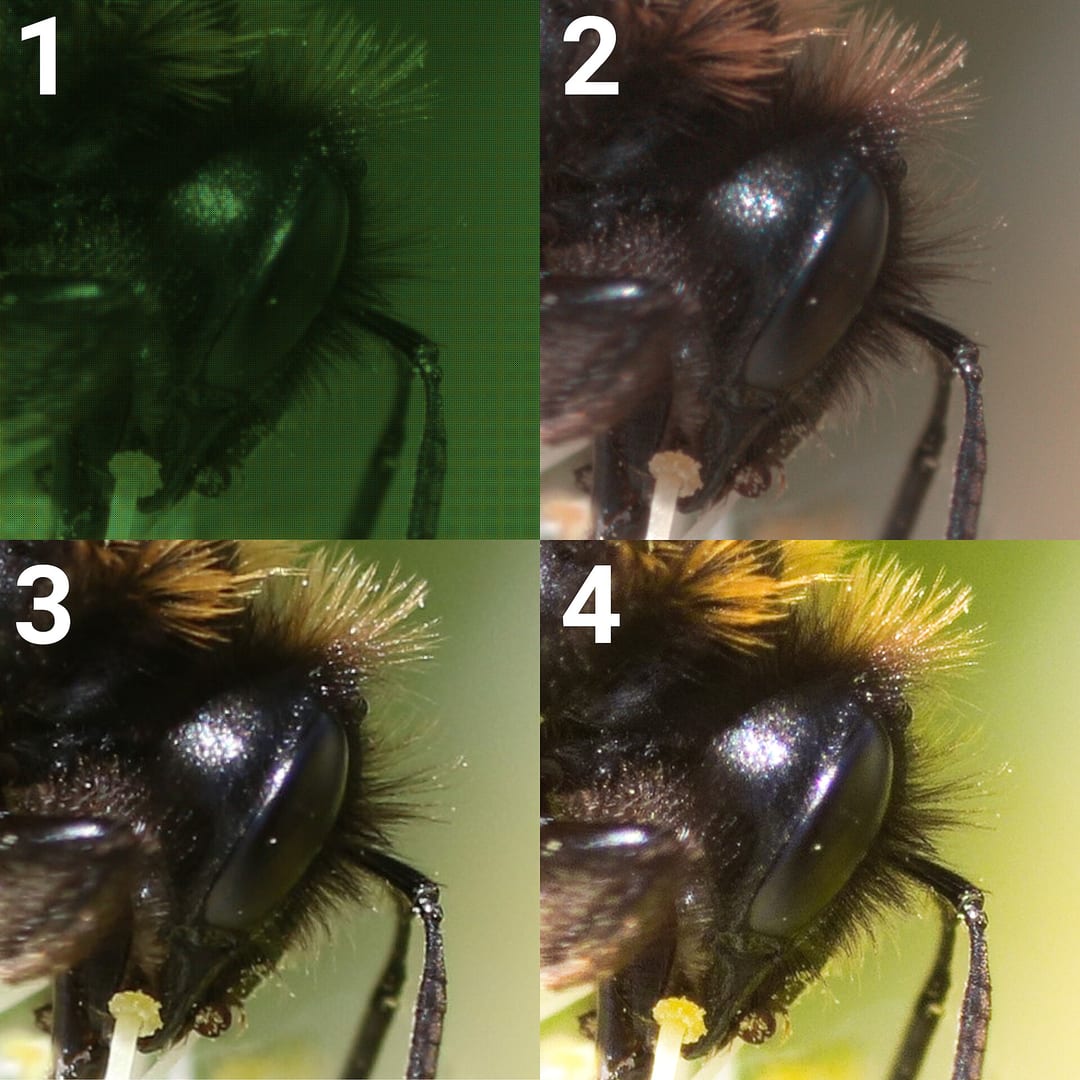
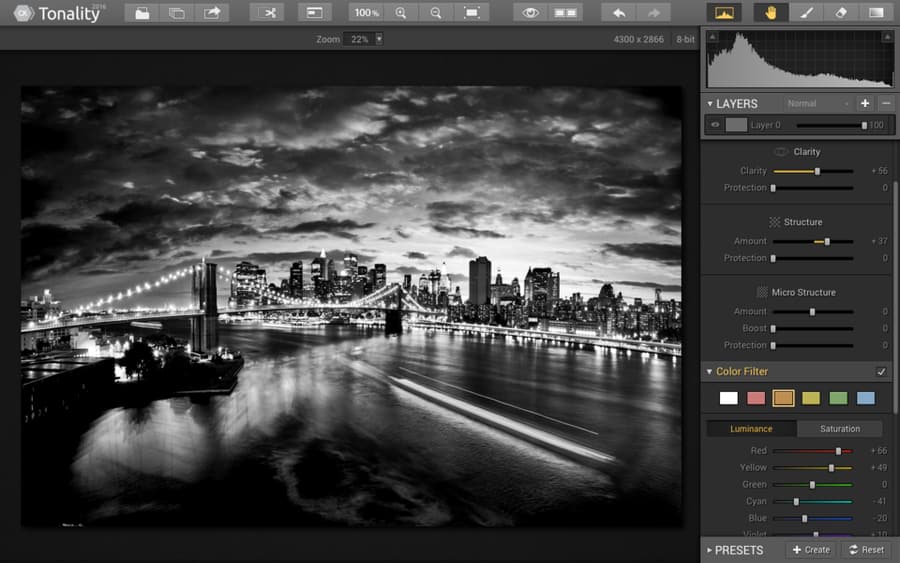
Exposure shifts broad brightness; Whites and Blacks set endpoint behavior; Highlights and Shadows change wide tonal regions. A tone curve shapes contrast by range: a gentle S-curve increases separation, while raising the black point produces faded blacks. Per-channel curves also change color. HSL changes Hue, Saturation, and Luminance for overlapping color ranges. Adjusting orange may affect skin, wood, and clothing together, so local masks are safer when one color appears in different subjects.
Key takeaways
- Set white and black points while protecting important detail
- A gentle S-curve raises contrast; a lifted black point lowers the sense of depth
- Strong curves can change perceived saturation, so reassess color afterward
- HSL should support subject color and palette, not create isolated false color
- Large luminance changes can produce halos, noise, and broken gradients
- Review at thumbnail, Fit, and 100% because each reveals different problems

Practical example
Use a subtle S-curve for shape, then reduce green saturation if foliage competes with skin. If the subject's clothing is also green, use a background mask or a narrower range instead of changing all green pixels. Temporarily view in monochrome to verify tonal hierarchy.
Common mistakes
- Pulling Highlights and Shadows to extremes and producing a synthetic HDR look
- Adding a strong S-curve after contrast is already clipping
- Lifting blacks until the image loses its tonal anchor
- Breaking skin into color bands with HSL
- Synchronizing one HSL correction blindly across different light

Knowledge check
Lesson 04
Masking and Local Adjustments
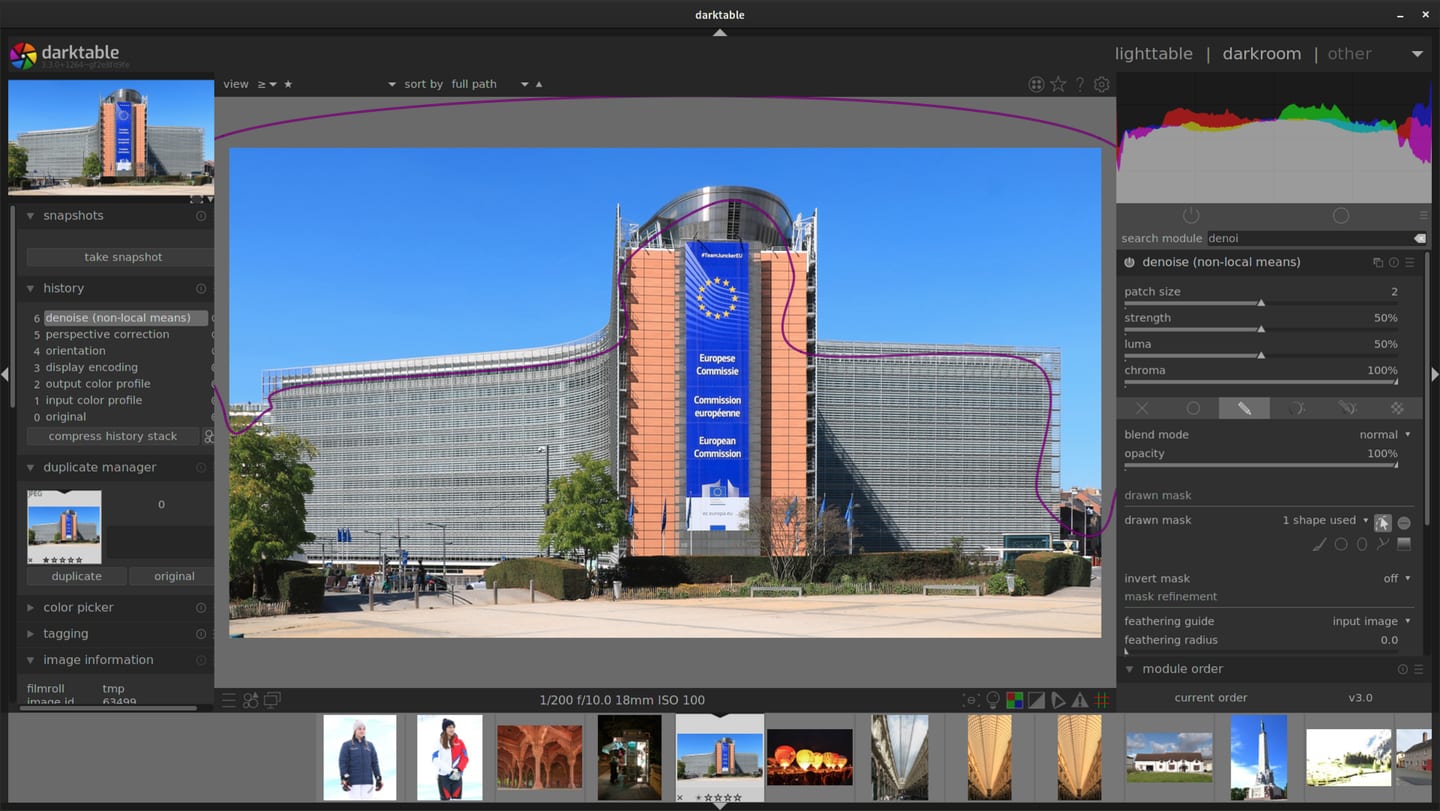
Masks restrict an adjustment to a subject, sky, background, luminance, color, or painted region. Select the simplest method for the shape, then refine with intersect and subtract. Feather, flow, and density create natural transitions more reliably than a hard selection with reduced global opacity. Dodge and burn should respect existing light: brighten areas that already receive light, reduce distractions, and preserve source direction. Inspect mask overlays and hair edges at 100%, then judge overall strength in Fit view.
Key takeaways
- Feather edges enough to avoid obvious transitions
- Range masks can prevent a gradient from affecting unrelated tones or colors
- Use subtle dodge and burn to guide attention rather than remake the scene
- Several clearly named simple masks are easier to control than one complex mask
- Check for halos around hair, mountains, and high-contrast edges
- Toggle each mask and the entire edit to identify cumulative overprocessing
- Dodge & Burn selectively lightens/darkens to guide attention or smooth small tonal differences. Use a soft low-flow brush, build gradually, and return to the whole image. Preserve original light direction and texture rather than repainting form with strong Exposure changes.
- Skin retouching begins with an agreed scope. Heal/Clone temporary blemishes nondestructively, then correct slight unevenness in brightness. Retain pores and identifying features; do not assume permission to remove moles or wrinkles or alter body shape.
- For object removal, Heal blends sampled texture into its surroundings, Clone copies an area, and Remove/Generative Remove can synthesize content. Inspect edges, shadows, reflections, and repeated textures at 100% and full view. In documentary work, removing objects can change meaning and must follow the project’s publication standards.

Practical example
Raise the face about +0.2 EV, lower the sky with a gradient, and darken a bright distraction slightly. If an AI subject mask misses hair, refine it with a brush or intersection rather than widening feather until the whole background changes. For an agreed creative portrait with a temporary cheek blemish and a plastic bag at the edge, retain the original, heal from a nearby appropriate area, use subtle dodge & burn, and remove the bag on the edited version. For a documentary frame where the bag is information, keep it or choose another frame rather than silently erasing it. Inspect hair edges, the bag’s shadow, and wall texture for artifacts.
Common mistakes
- Using a hard mask edge that creates a halo
- Making the subject so much brighter than the background that it appears pasted in
- Trusting an AI selection without checking gaps and transparent objects
- Dodging or burning against the original light direction
- Building many unnamed masks that cannot be maintained
- Removing identifying features without agreement, producing plastic skin, or creating repeated Clone patterns
- Removing an object but retaining its shadow/reflection, or inserting generated content into documentary work without appropriate disclosure

Knowledge check
Lesson 05
Noise Reduction and Sharpening
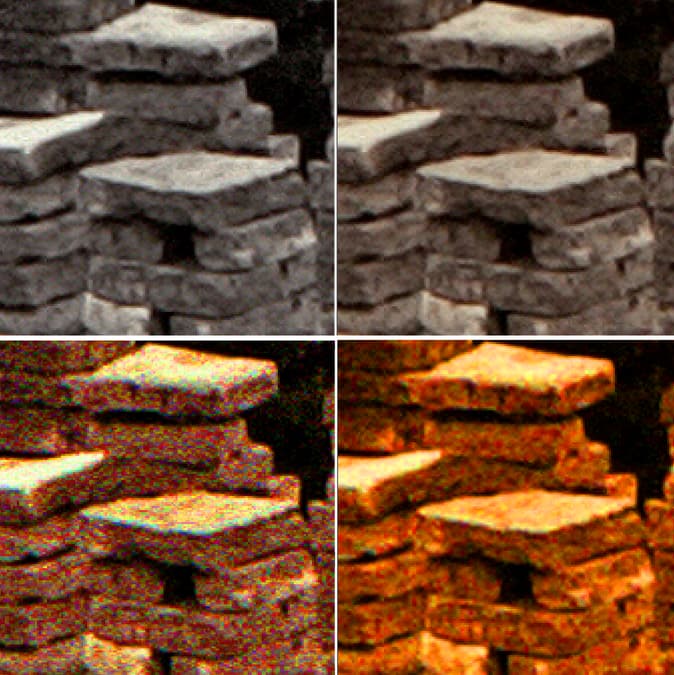
Color noise appears as colored speckles and can often be reduced with little detail loss. Luminance noise resembles brightness grain and must be balanced against texture. Sharpening controls commonly include amount, radius, detail, and masking; they increase edge contrast but cannot restore missed focus or motion-blurred detail. A useful workflow includes light capture sharpening, optional creative sharpening on important detail, and output sharpening after resizing. AI denoise still needs inspection for artifacts and invented texture.

Key takeaways
- Correct exposure before judging the required noise reduction
- Reduce color noise before making strong luminance-noise decisions
- Mask sharpening away from skin, sky, and smooth backgrounds
- Small radius suits fine detail; large radius more easily creates halos
- Inspect artifacts at 100% but decide at actual output size
- Web and print exports need separate resizing and output sharpening
Practical example
For an ISO 6400 portrait, reduce color noise, add only enough luminance reduction to control distraction, and mask sharpening into eyes and hair. Compare a version that retains grain and hair strands with a cleaner version where hair begins to clump. At web size, retained texture often looks more natural.
Common mistakes
- Judging only at 100–200% instead of final size
- Applying noise reduction before correcting a severely dark exposure
- Treating Clarity or Texture as equivalent to sharpening
- Using strong sharpening to “fix” motion blur
- Applying the same output settings to a 1080 px file and a large print
Knowledge check
Lesson 06
Color Grading and Developing a Style
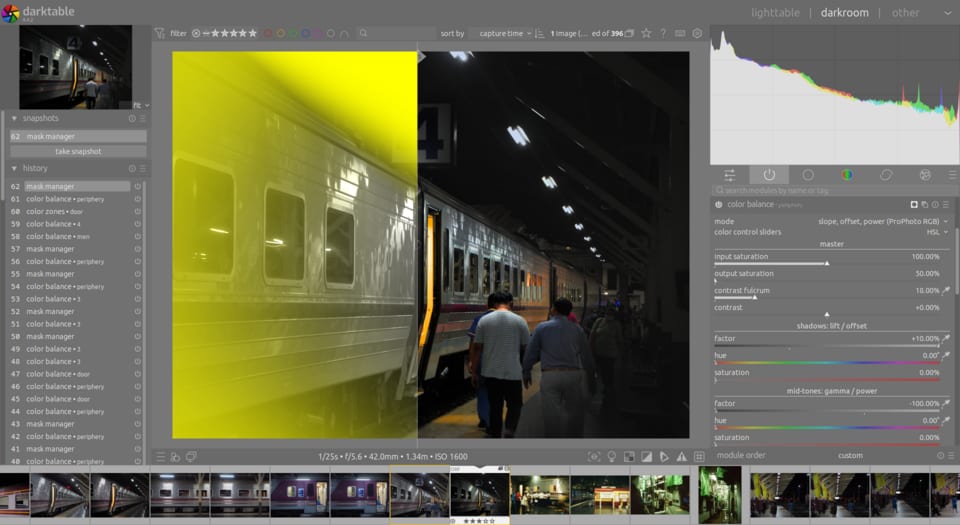
Analyze references with observable language: black point, highlight temperature, dominant and reduced colors, saturation, and contrast. Labels such as “cinematic” or “film” are too broad until translated into repeatable visual attributes. A durable style begins with consistent light and exposure. A preset is only a starting point because camera profiles, white balance, and source color change. Preserve important identity colors—skin, product, or brand—and build the palette around them.
Key takeaways
- Make a neutral correction before a creative grade
- Describe a reference through tone, palette, saturation, and color relationships
- Keep skin and important recognition colors believable
- Synchronize visual intention, not every numeric slider
- Test a style across multiple scenes and lighting conditions
- Use a calibrated, stable viewing environment when color accuracy matters
- For skin tone correction, establish WB/Tint from a reference first, use a skin mask for local casts, and adjust Hue/Saturation/Luminance gradually while comparing face, neck, and hands. No single HSL value or brightness target is correct for every complexion.
- Colour grading deliberately colors shadows, midtones, and highlights after neutral correction. Use a reference to choose cool shadows or warm highlights, then reduce the effect if skin or product colors drift.
- A preset stores processing settings; a LUT maps color values and usually expects a specific input color space/gamma. Neither replaces WB, exposure, or the input profile. A Log-input LUT should not be applied indiscriminately to already rendered sRGB JPEG/RAW output.
- For batch editing, group frames by lighting, develop a reference, and synchronize only shared settings. Exclude framing-specific crop, heal, and positional masks by default, recheck adaptive masks, and refine individual exposure/WB.
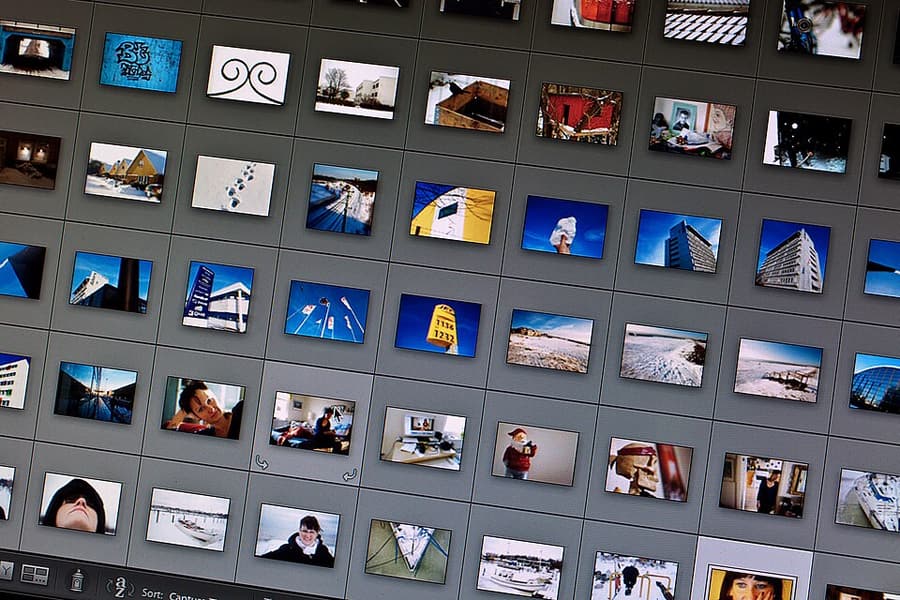
- Colour consistency aligns visual feeling and identity colors rather than forcing equal histograms or Kelvin values. Inspect a contact sheet, establish a reference per lighting group, and correct outliers before exporting the album.
- Develop signature colour across projects: write three principles for tone, palette, and protected colors, version the preset, and test sun/shade/artificial light. Record where it fails. A personal style grows from intentional repeated choices, not simply one LUT.
Practical example
A “warm, muted, soft” direction may use slightly warm highlights, lower overall saturation, restrained greens, believable orange skin, and gentle contrast. A sunlit file and a shade file may need different WB and HSL values to reach that same destination. For ten sunlit and ten LED-lit images, choose one reference per group, correct green skin casts, then add gentle warm grading. Sync curves and palette within each group, excluding crop/heal. Compare face, neck, hands, and the contact sheet; correct orange drift in an individual frame rather than changing the whole preset. Save “warm-soft-v01” with suitable lighting and known failure cases.
Common mistakes
- Applying a preset without correcting the source light first
- Grading before neutralizing different color casts across the set
- Forcing every color into one palette and losing identity colors
- Testing the style only on one easy hero image
- Compensating for an uncalibrated, overly vivid display in the file itself
- Synchronizing crop/heal/positional masks onto different frames without checking
- Applying a LUT to the wrong input color space or treating one skin formula as universal
Knowledge check
Lesson 07
Lightroom, Capture One, and Photoshop
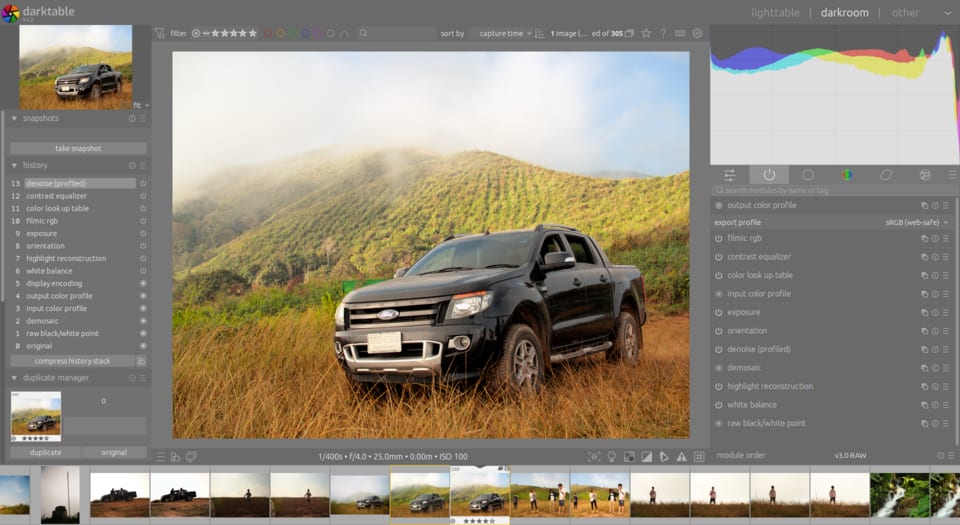
Lightroom Classic combines cataloging, development, and batch output; its cloud version emphasizes multi-device synchronization. Capture One is often selected for studio tethering, Sessions, and color control. Photoshop is a pixel editor for layers, masking, compositing, and detailed retouching, not a catalog replacement for thousands of files. Choose tools around workflow, collaboration, cost, and file compatibility. Exposure, curves, masks, and color management transfer between applications even when interfaces differ.
Key takeaways
- Select software according to workflow bottlenecks rather than popularity
- Learn editing principles before relying on presets and plugins
- Keep adjustments non-destructive where possible
- Back up the catalog/database separately from RAW files and sidecars
- Layered PSD/TIFF masters can be large, so round-trip only images that need them
- Evaluate AI and plugins for artifacts, privacy, and reproducibility
- A RAW workflow backs up originals and catalog/sidecars, culls, sets a profile, corrects lens/WB/exposure, refines tone/color, applies masks and detail work, then exports copies for the destination. Retain history or virtual copies so style changes do not overwrite originals.
Practical example
For 500 images, cull and batch-correct in Lightroom or Capture One. Send only five hero images needing complex cleanup, compositing, or retouching into Photoshop as layered masters, then stack them beside their RAW files in the catalog.

Common mistakes
- Switching software repeatedly instead of mastering transferable principles
- Believing a catalog contains the only copy of the original files
- Sending every photograph to Photoshop and bloating storage
- Making destructive edits without a master or layer history
- Depending on a plugin that cannot reproduce its result later